GooglePhotos-TimTools
 Google Photos Tim Tools

A comprehensive, privacy-first Google Chrome extension that enhances Google Photos with power utilities. It runs 100% locally in your browser - no third-party servers, no telemetry, and no external tracking.
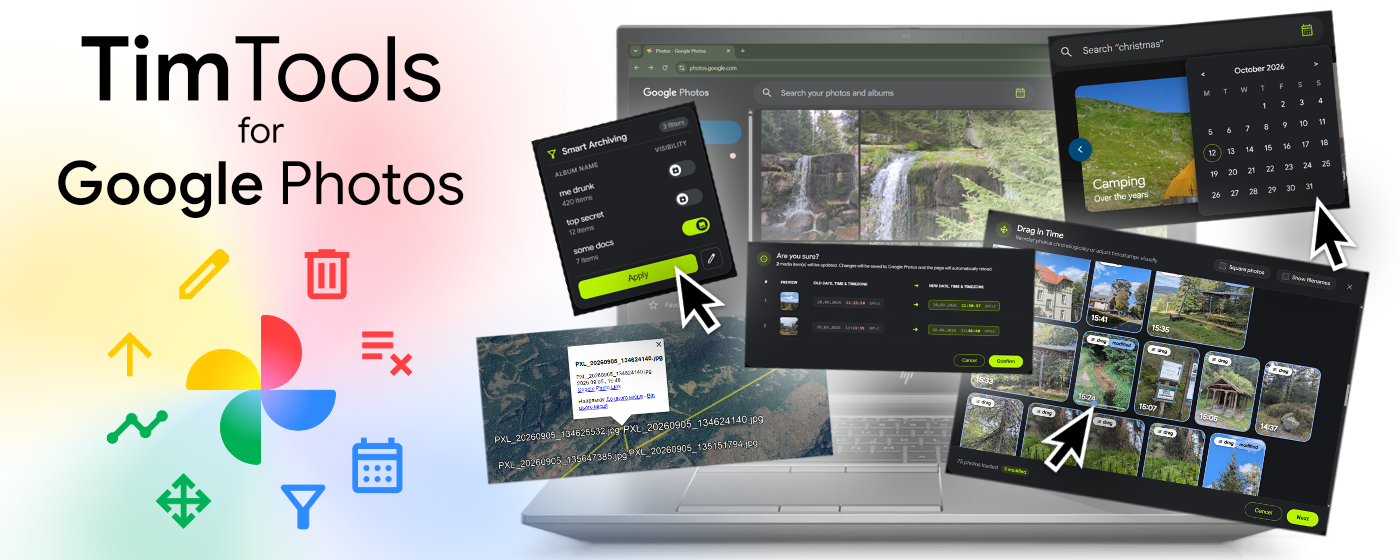
🧩 Modules & Features
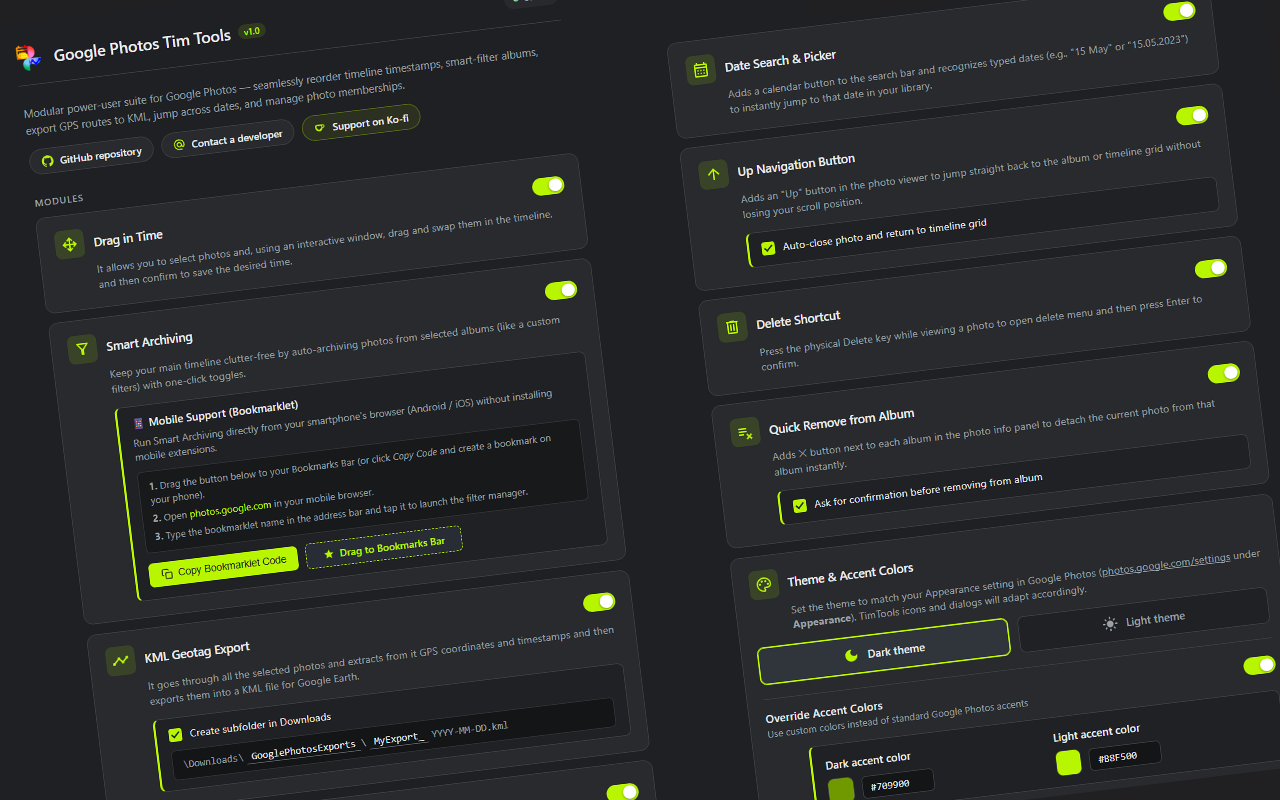
The extension features a modular architecture where each tool can be individually enabled or configured via the Options Page. The modules are organized below in the exact order found in the extension settings:
1. Drag in Time
Interactive timeline canvas for visually reordering photo timestamps.
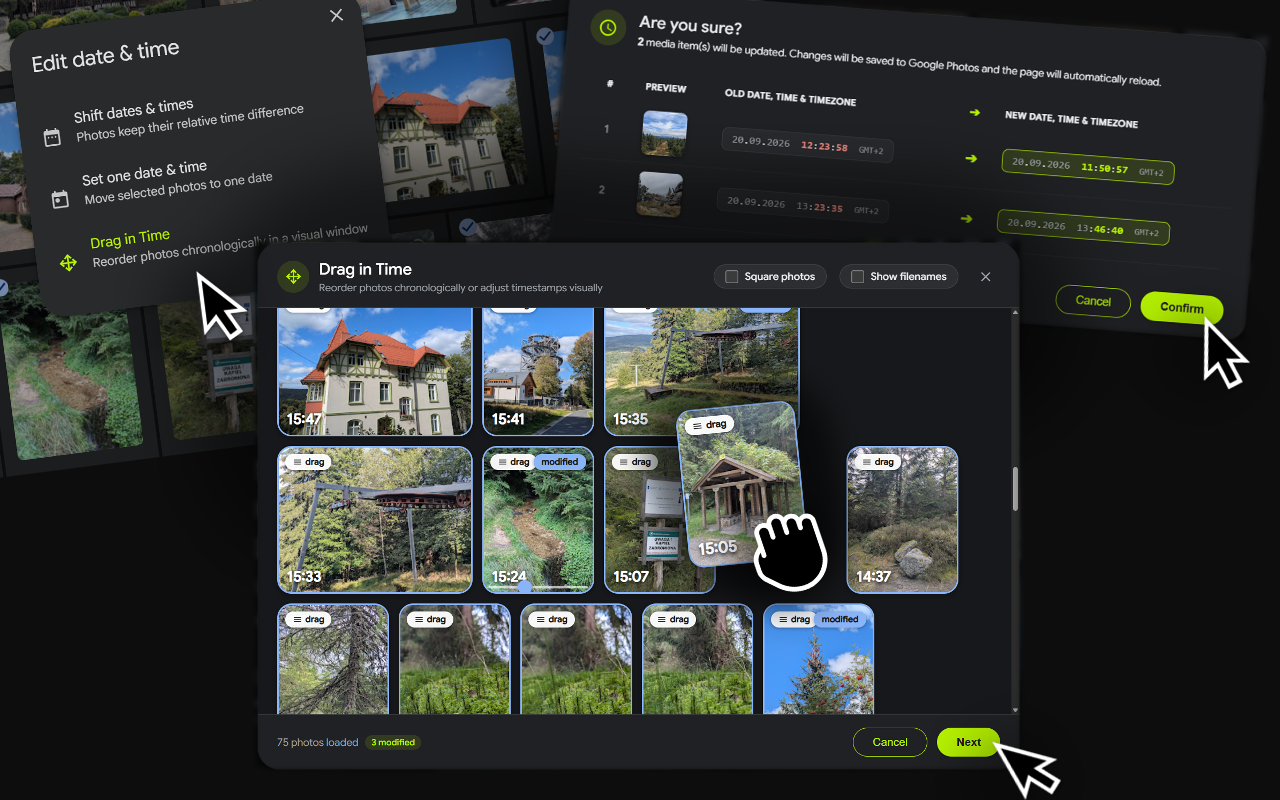
- Visual Drag & Drop: Injects a “Drag in Time” action directly into Google Photos’ native “Edit date & time” modal.
- Infinite Timeline Loading: Automatically streams and renders adjacent photos from the timeline grid so you can position pictures precisely relative to surrounding events.
- Batch Timestamp Recalculation: Calculates adjusted timestamps on the fly and saves them in batches using Google Photos’ internal RPC (
DaSgWe). - Safety Confirmations: Shows a visual review of timestamp modifications before applying changes.
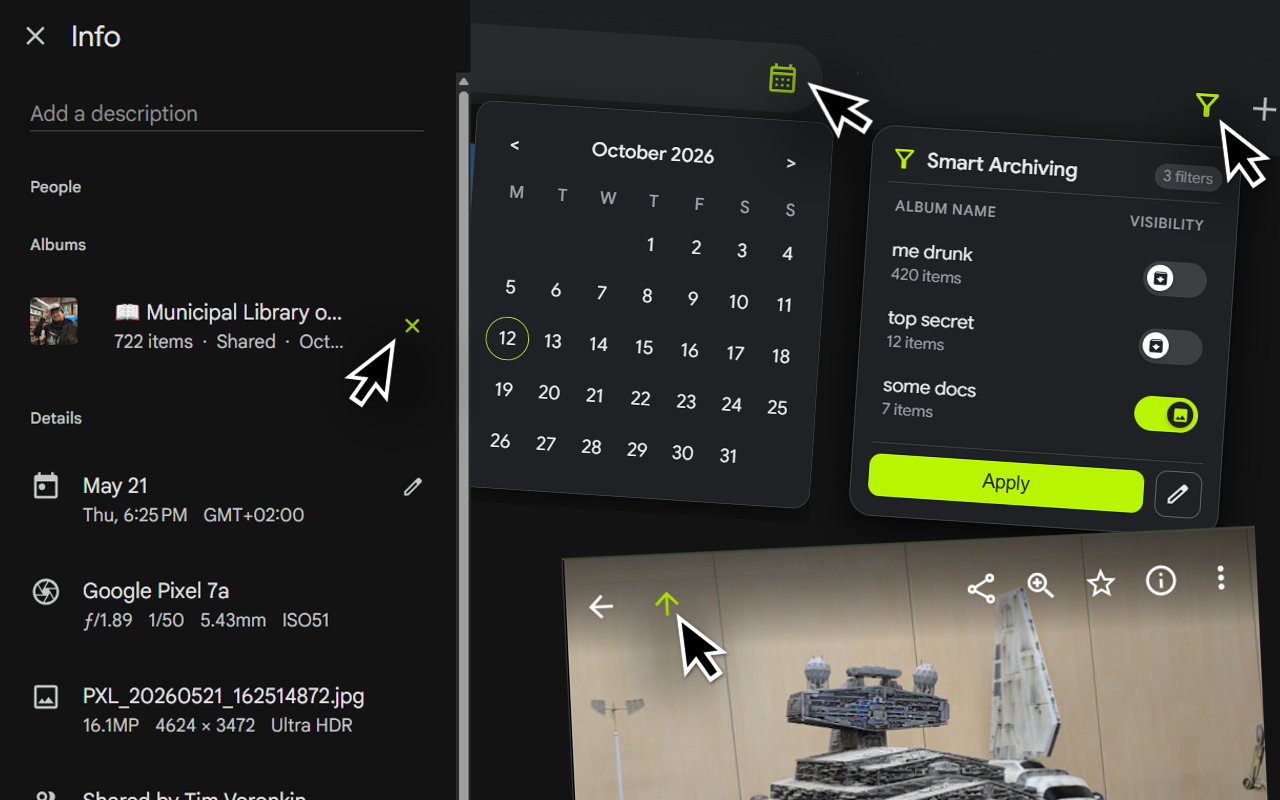
2. Smart Archiving
Context-aware timeline filters to show or hide photo categories depending on who is watching.
- Albums as Visibility Filters: Create designated albums to act as on-demand visibility filters (e.g., “Documents”, “Cringe Photos”, “Ex-Partner”, or “Receipts”).
- 1-Click Show / Hide Toggles: A sleek filter button in the Google Photos navigation bar opens a popover where you can toggle filter albums on or off. Photos in toggled-off albums are instantly archived to keep your primary feed clean.
- Tailored for Social Browsing: Showing your timeline to family, parents, or coworkers? Turn off sensitive filters to browse safely without awkward moments. Hanging out with a close friend? Restore your “Cringe Photos” right back into your photostream with a single click!
- Non-Destructive & Reversible: Photos are simply moved between your Library and Google Photos Archive (
/archive), never permanently deleted. - Set Theory Logic & Batch Sync: If a photo belongs to multiple filter albums and at least one filter is switched Off, it remains safely archived. Syncs changes in rapid 50-photo batches via internal RPC (
w7TP3c) with account-specific settings. - Mobile Bookmarklet Support: Includes a built-in bookmarklet generator to run your archiving filters on mobile browsers (Android and iOS).
3. KML Geotag Export
Extract GPS coordinates, timestamps, and photo routes into KML for Google Earth.
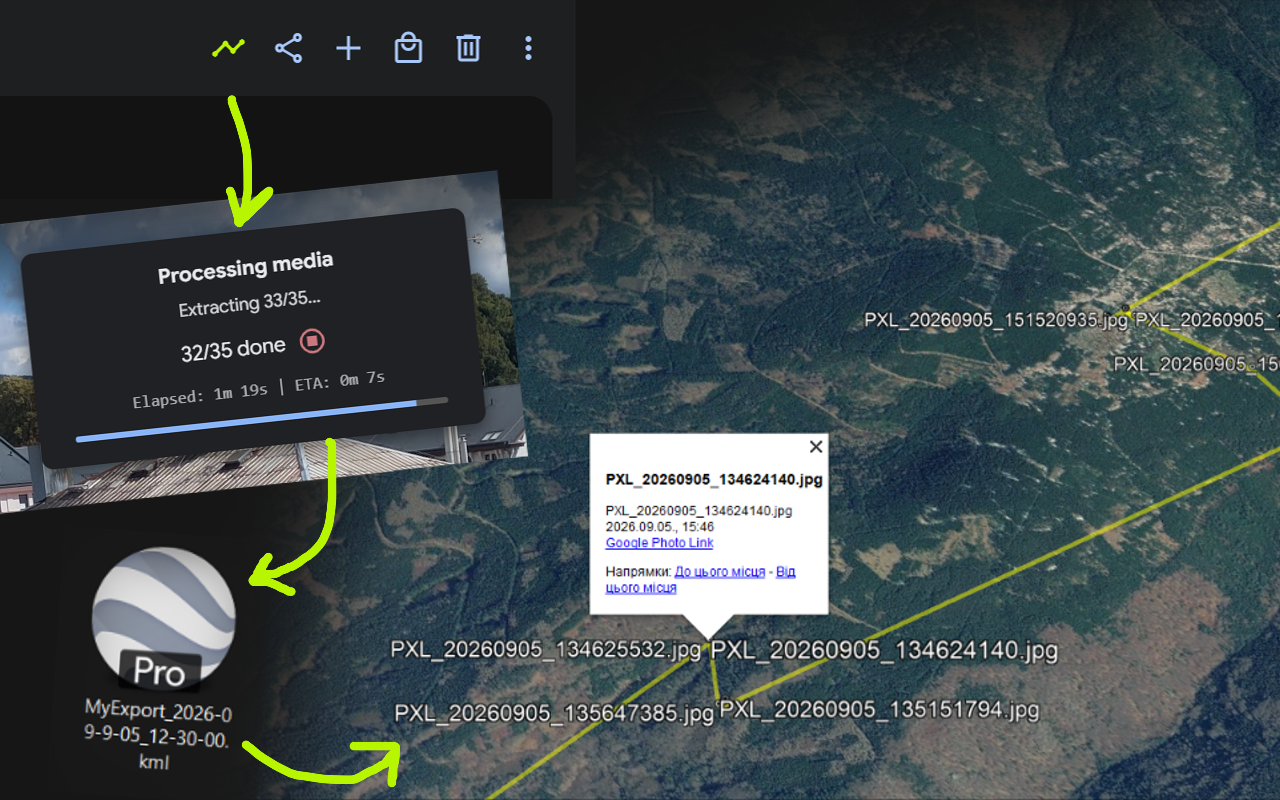
- Automated Metadata Scraper: Traverses selected photos using a headless master/child tab background flow that circumvents CORS limitations.
- Chronological Route Generation: Generates a continuous
LineStringGPS track and individual waypointPlacemarkswith direct links back to each photo. - Configurable Destination: Choose whether to save into a dedicated subfolder in your Downloads directory and specify custom filename prefixes and date patterns (e.g.,
MyExport_YYYY-MM-DD.kml).
4. Date Search & Picker
Instant date navigation and natural language search parsing.
- Search Bar Calendar Button: Adds a date picker icon inside the Google Photos search bar.
- Interactive Calendar: Pick any day, month, or year from a custom Material-styled calendar dropdown to jump directly to that date in your timeline.
- Natural Language Parsing: Automatically understands typed dates in English, Ukrainian, and Russian (e.g., “15 May”, “15 травня”, “2023.08.12”) and formats them into Google Photos’ search syntax.
5. Up Navigation Button
Escape albums and searches back to the main timeline without losing your place.
- Context Escaper: Injects an “Up” button into the photo viewer header when browsing inside an album, search query, or shared link.
- URL Parameter Stripping: Removes contextual tracking queries from the URL and opens the identical photo in the primary photostream timeline.
- Optional Auto-Close: Configure whether clicking “Up” automatically closes the single photo view to land directly on the grid.
6. Delete Shortcut
Native physical keyboard shortcut to delete photos quickly.
- Physical
DeleteKey Binding: PressDeletewhile viewing any photo to instantly trigger the native Google Photos delete action. - Keyboard Confirmation: Press
Enterto confirm the deletion modal orEscapeto dismiss. - Input Guard: Smartly ignores keystrokes whenever typing inside text fields, search bars, or description editors.
7. Quick Remove from Album (AlbumQuickRemove)
One-click detachment of photos from albums inside the Info sidebar.
- Direct Remove Button: Adds a dedicated
✕button beside each album listed in the photo’s Info panel (i). - Precise Membership Resolution: Queries internal album item tokens (
snAcKc) to locate the specific photo-album membership before executing the removal RPC (ycV3Nd). - Optional Confirmation Dialog: Toggleable safety modal with keyboard support (
Enterto confirm,Escto cancel) so you never remove a photo by accident.
🎨 Customization & Settings
Access the extension options page at any time by clicking the extension icon in your Chrome toolbar or navigating to chrome://extensions/ -> Google Photos Tim Tools -> Options.
Theme & Accent Colors
- Appearance Sync: Choose between Dark theme and Light theme to mirror your preferred appearance at
photos.google.com/settings. - Override Accent Colors: Enable custom accent colors to replace default Google Photos blues with your personal color palette using real-time color pickers and hex inputs.
- Organic UI Integration: All custom extension buttons, icons, modals, and tooltips seamlessly adopt the selected accent color.
Debug Logging
- Unified Diagnostic Output: Toggle detailed console logs formatted as
[GP-TimTools][ModuleName]to troubleshoot extension behavior or monitor RPC network cycles. Completely silent when disabled.
📸 Screenshots
 |
 |
 |
 |
🛠️ Installation & Setup
🌟 Chrome Web Store (Recommended)
Install directly from the official Chrome Web Store for one-click setup and automatic updates: 👉 https://ChromeWebStore.Google.com/detail/jfbkeejcoccjomdfcnihgcohfmflaojn
💻 Manual Installation (Developer / Unpacked Mode)
If you wish to test or run the extension directly from source:
- Clone or Download:
git clone https://github.com/TimVoronkin/GooglePhotos-TimTools.git(Or download the ZIP archive and extract it).
- Open Extensions Page:
Navigate to
chrome://extensions/in Google Chrome (or any Chromium browser like Brave, Edge, Vivaldi, Opera). - Enable Developer Mode: Toggle Developer mode in the top-right corner.
- Load Extension:
Click Load unpacked and select the root repository folder containing
manifest.json. - Open Google Photos: Navigate to photos.google.com to start using the tools!
📦 Building for Chrome Web Store
To generate a clean production-ready .zip archive for uploading to the Chrome Web Store Developer Dashboard:
- PowerShell (Windows):
.\build.ps1 - Node.js / npm (Cross-platform):
npm run build
What the build script does automatically:
- Collects only runtime extension code (
src/,manifest.json, optimized icons). - Excludes heavy source files (
.psdassets, raw promo mockups, git history, docs). - Strips the local development
"key"field frommanifest.jsonas required by the Chrome Web Store. - Generates a lightweight (~125 KB)
dist/GooglePhotos-TimTools-v<version>.zipready for instant publishing.
🔒 Privacy & Security
- Local Execution: All script operations run strictly inside your browser session.
- No Remote Tracking: No third-party analytics, metrics, external APIs, or remote servers.
- Standard Permissions: Uses only standard Chrome APIs (
storagefor settings,downloadsfor KML files,clipboardWritefor bookmarklet export, andtabsfor KML multi-tab scraping).
💖 Support the Developer
If Google Photos Tim Tools saves you time and enhances your photo library workflow, consider supporting ongoing development:
- ☕ Buy me a coffee: Ko-fi.com/Tim_Voronkin
- ⭐ Rate & Write a Review: ChromeWebStore.Google.com/detail/jfbkeejcoccjomdfcnihgcohfmflaojn
- 🌟 Star the repository: GitHub.com/TimVoronkin/GooglePhotos-TimTools
- 🌐 Contact the developer: TimVoronkin.github.io